
This is an example view of the ticket view, in the helpdesk, which can be viewed by selecting
Service -> Help Desk in the left side menu, of your HubSpot.
Keep in mind, that our workflow system should make sure that only tickets that are for you, will be assigned to you automatically. 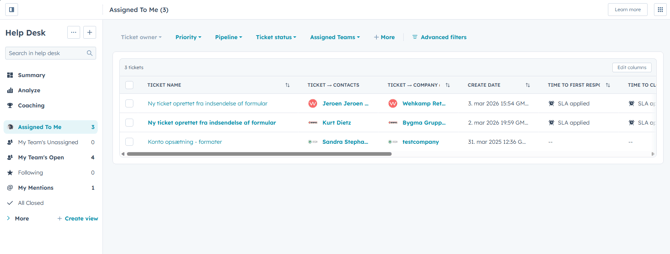
If you select a ticket, for example the bottom one, the ticket view changes to this: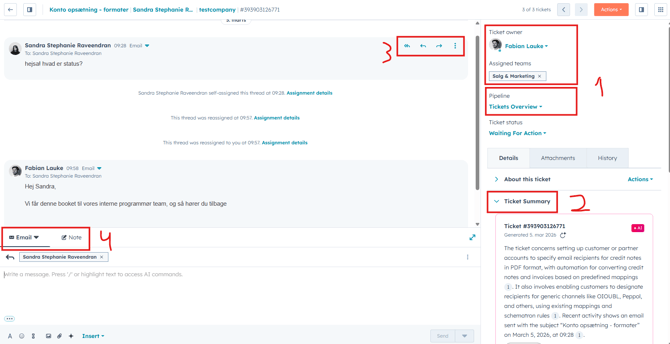
1: Here you have information about who is assigned on the ticket. You can change this, if you need a colleague to help out on the ticket. Best practice would be to also tag said colleague on a note (See 4)
2: Ticket summary will show you in short, what this ticket is about. It also references to attachments if available, and summarizes both replies, and notes alike.
3: Here you can make sure to either reply to the last message sender, or reply to all people (CC's included)
4: Here you can either reply via mail, meaning to the customer/partner, or select note to keep it internal.
Clients will not see what is written here, but it will be included in the summary.
Both on the ticket, and also the contact/company summary for others to see.
If you scroll down, you will se a "Contacts" and "Comapany" section as well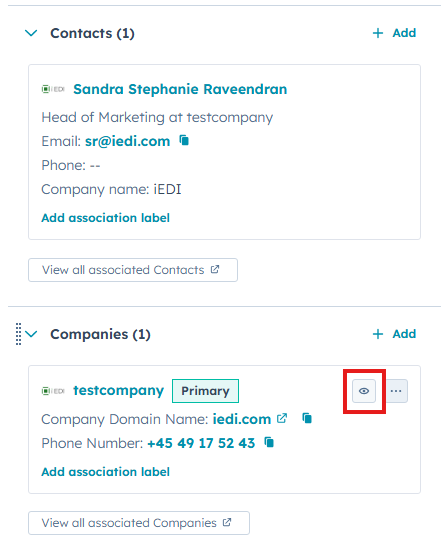
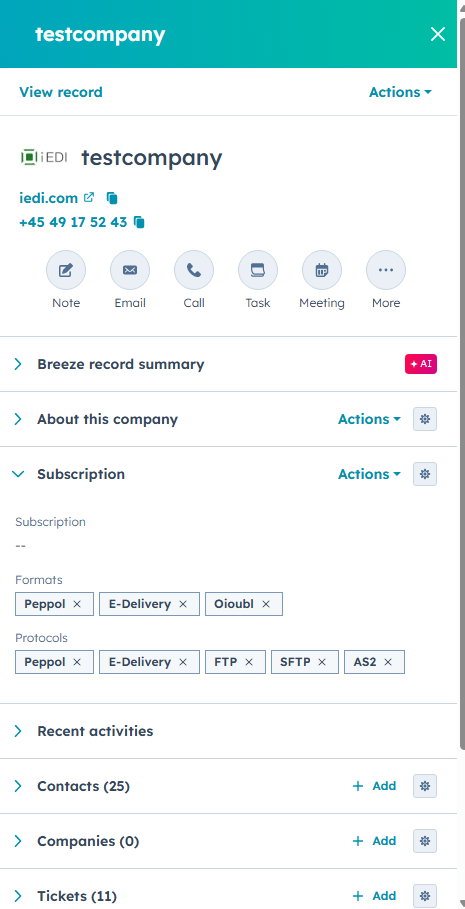
Feel free to preview this information, by clicking the eye logo.
From here, you can read the formats the company is using, along with protocols etc.
And also jump to other tickets, by this company.
If the ticket should be booked for our programmers/developers
this will be done by moving the ticket to the "Internal Pipeline" and unassigning yourself from the ticket. 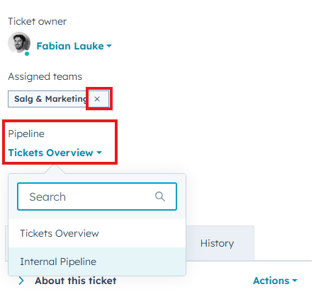
To do this, click on the "Pipeline" field, and select "Internal Pipeline"
Afterwards, remove the assigned team, and this should automatically unassign the ticket as well.
Double check that you are no longer assigned to the ticket, otherwise, you're good to go.
The ticket will now be in the Internal Pipeline, ready to be scheduled by Anita or Daniel.
When closing a ticket
You must make sure that billable time is on the ticket. It is not possible to close the ticket without.
Once a ticket can be closed, change the ticket status to "Closed"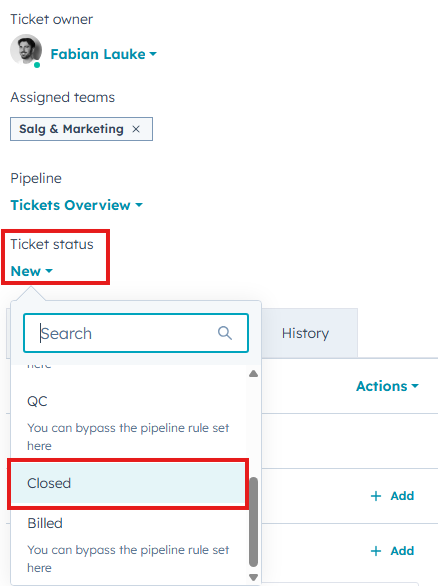
Afterwards, fill out the information accordingly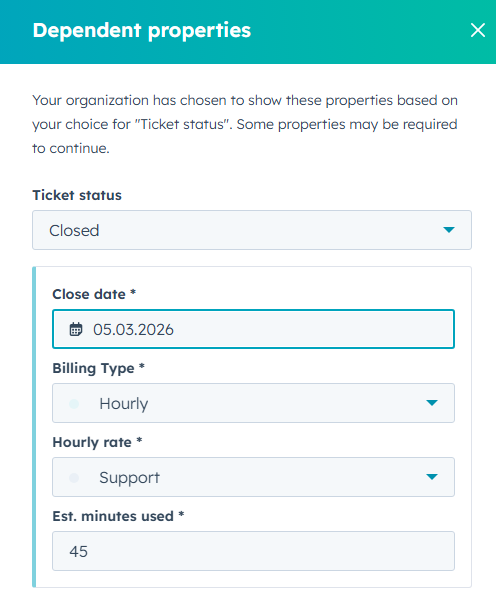
Once saved, the ticket is now closed.