
Step 1 - Adding your Email & enabling inbox automation
First navigate to HubSpot, find the search box and search for this: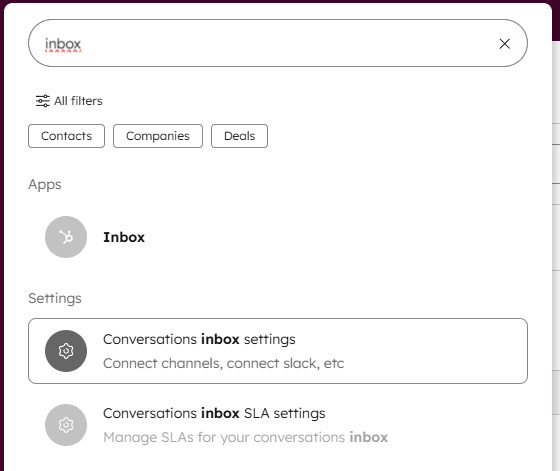
Once you have selected the “Conversations inbox settings”, you want to choose the correct view, that is only visible to you. We’ve created one for all employees, and a shared one for Team-Support.
You should be able to find yours, like so: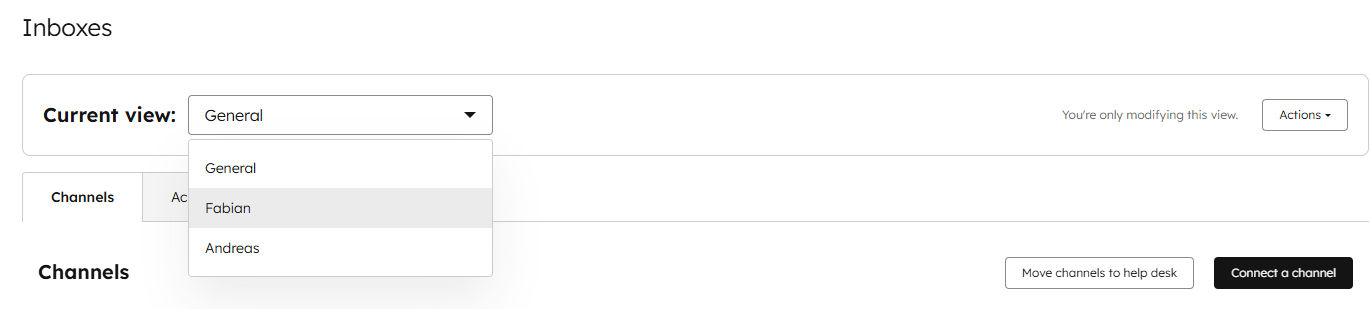
After this is done, please connect your @iedi email inbox, as a mail channel.
You should be able to find this here, and click on “Connect a channel” and follow the steps.
Step 2 - Connecting your calendar
Next up, navigate back to the search box, and search for “Calendar”
and select “Connect your calendar”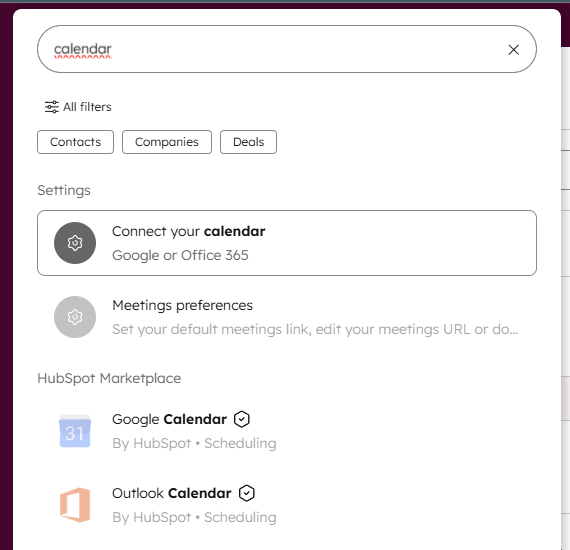
From there, follow the steps to add your Google calendar, so events and meetings are synced to HubSpot. 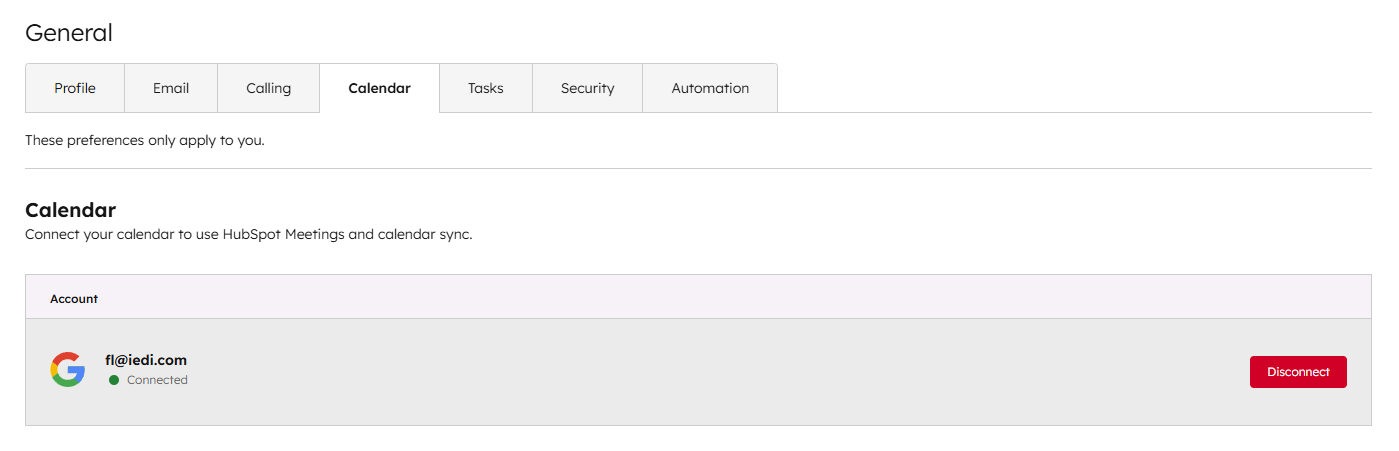
Step 3 - Connecting your meeting link
For the final step, please connect your HubSpot meeting scheduler, with your Google calendar. First part of this step is to install the Google Meet app, from the HubSpot market place. Navigate to the search bar, and search for “Google meet”
Select it like shown, and install the Marketplace app.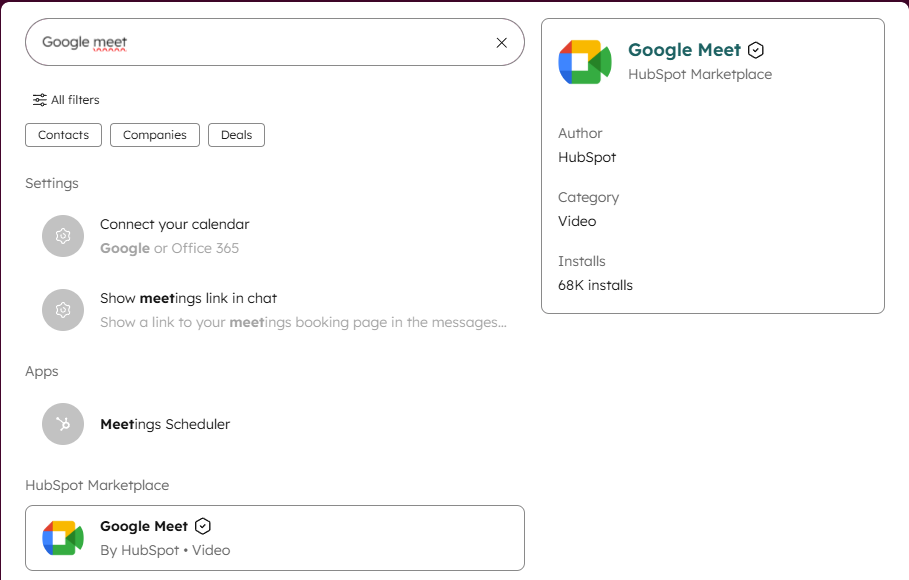
After this, navigate back to the search bar, and search for "Meeting Scheduler”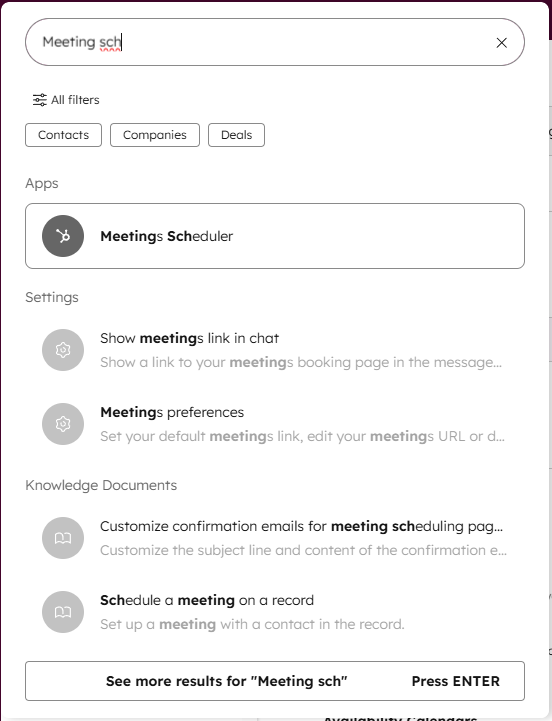
Select the “Meetings Scheduler”, and select the bar that should show up, like this.
(it’s likely named different)
Click on “Edit” and select “Google Meet” under the “Location” option.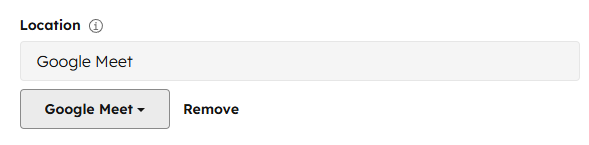
Once set up, feel free to adjust the top menu tab “Scheduling” to align time slots, availability and text descriptions etc.
DONE!